Remote Control
Control your computer remotely from your phone or other devices with voice command support.
AC-AIBot supports remote control, allowing you to operate your computer from your phone, tablet, or any browser with voice input support. No matter where you are, you can have your AI assistant complete tasks for you.
How It Works
Remote control works through the AC-AIBot cloud service:
- Your computer runs the AC-AIBot client and connects to the cloud service
- You access the Dashboard from your phone or other device via browser
- Select your computer in the Dashboard and send text or voice commands
- The AI assistant executes tasks on your computer
Step 1: Register and Log in to Dashboard
- Visit the AC-AIBot website
- Click the Dashboard button in the top right corner
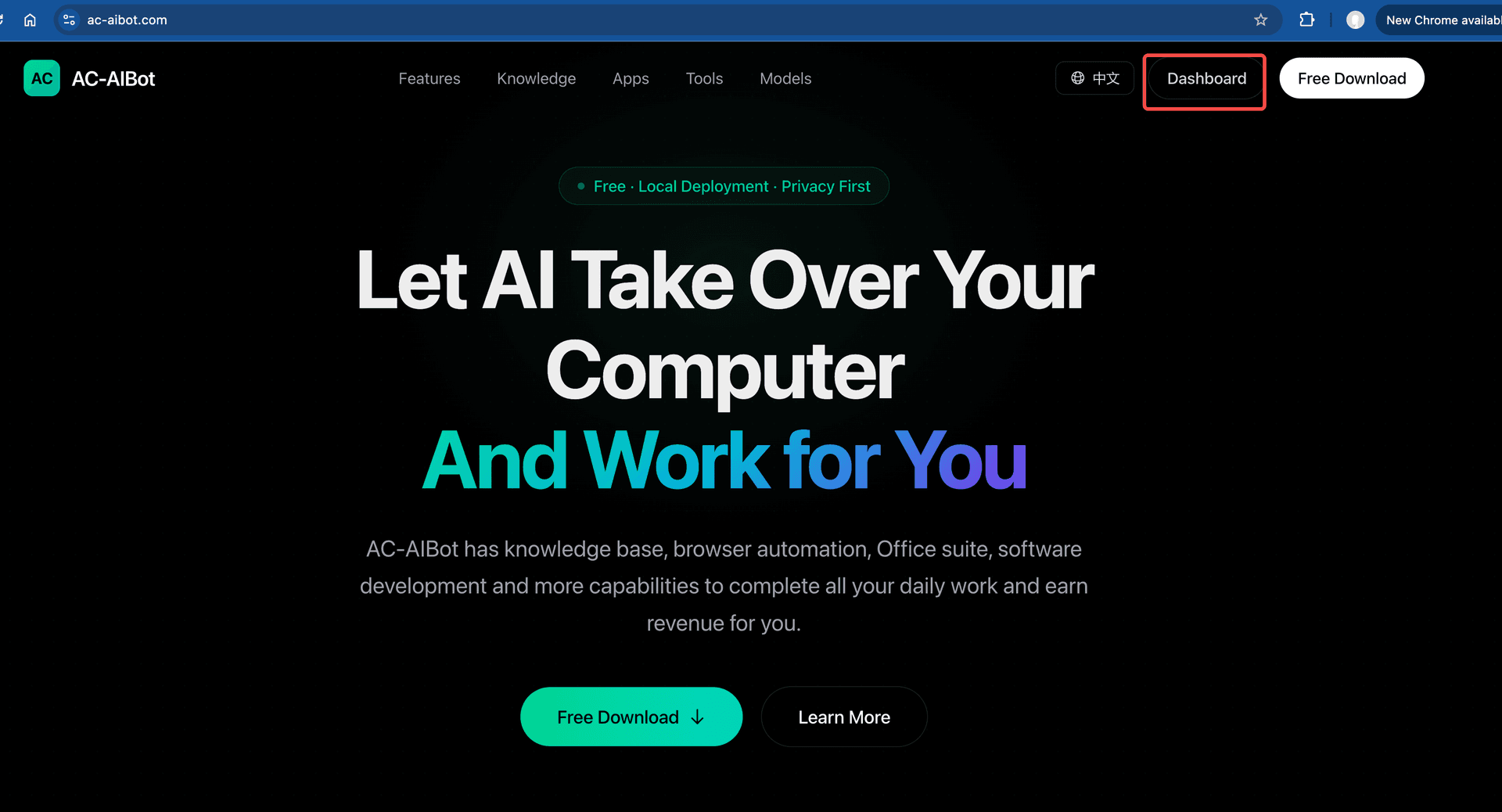
- Register for an account if you don't have one, or log in directly
- After logging in, you'll see the Dashboard page
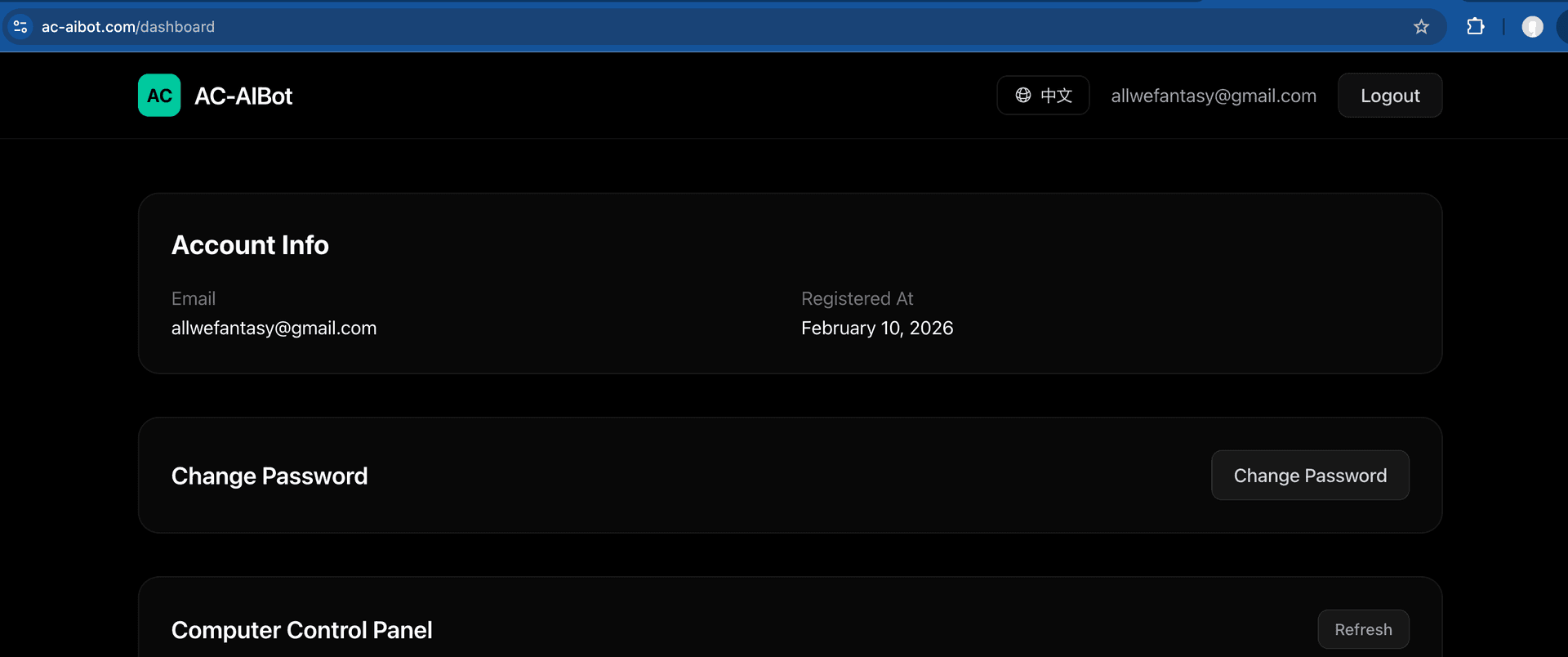
The Dashboard displays:
- Account Info: Account information (email, registration date)
- Change Password: Password management
- Computer Control Panel: List of connected computers
Step 2: Create an API Key
To connect your computer to the cloud service, you need to create an API Key.
- Scroll down on the Dashboard page to find the API Keys section
- Click the Create Key button to generate a new API Key
- Copy the generated API Key (starts with
ak_)
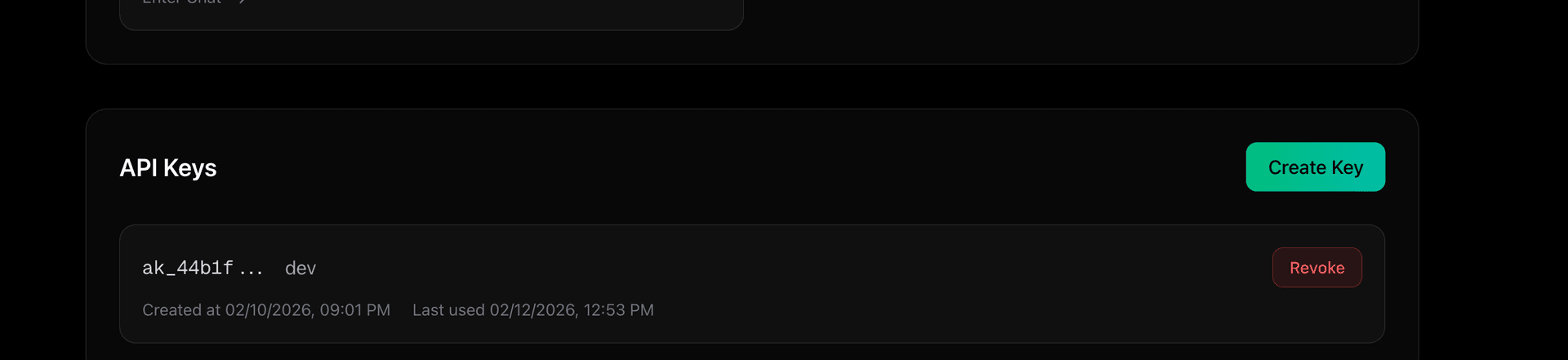
Note: The API Key is only shown once. Keep it safe. If lost, you can revoke it and create a new one.
Step 3: Configure Remote Control in the Client
- Open AC-AIBot on your computer
- Go to Settings > Remote Control
- Paste the API Key you copied into the API Key field
- Set a Computer Name to identify this computer in the Dashboard
- Turn on the Enabled switch
- Click Save Config to save the configuration
- Click Start to launch the remote control service
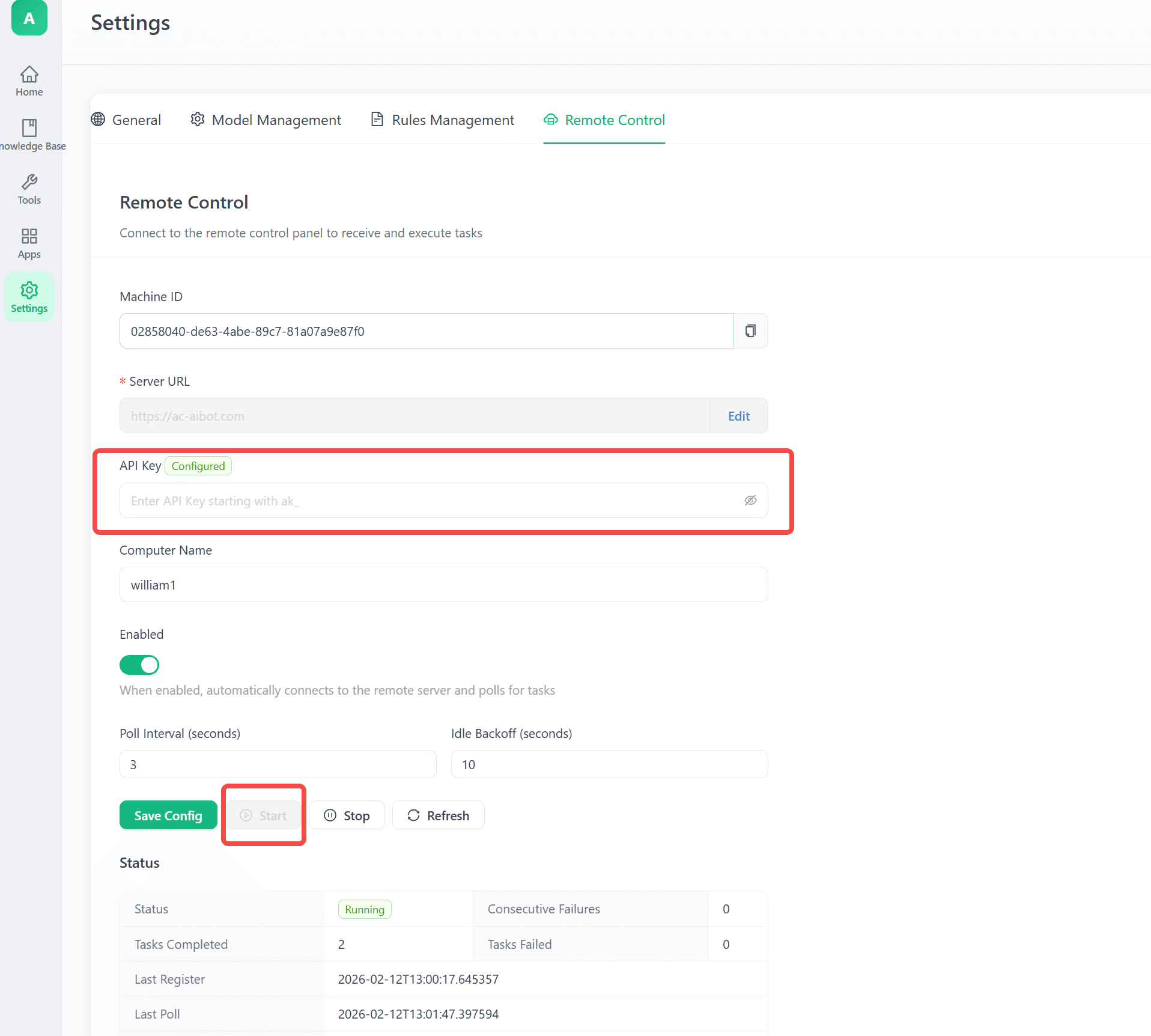
Configuration fields:
| Field | Description |
|---|---|
| Machine ID | Unique identifier for the computer (auto-generated) |
| Server URL | Cloud service address, default is https://ac-aibot.com |
| API Key | API Key obtained from Dashboard |
| Computer Name | Custom name for the computer |
| Enabled | Whether remote control is enabled |
| Poll Interval | Polling interval (seconds) |
| Idle Backoff | Idle backoff time (seconds) |
After starting, the Status section shows connection status:
- Status:
Runningmeans it's active - Tasks Completed: Number of completed tasks
- Last Register: Last registration time
- Last Poll: Last polling time
Step 4: View Connected Computers in Dashboard
Return to the Dashboard page. In the Computer Control Panel section, you can see connected computers:
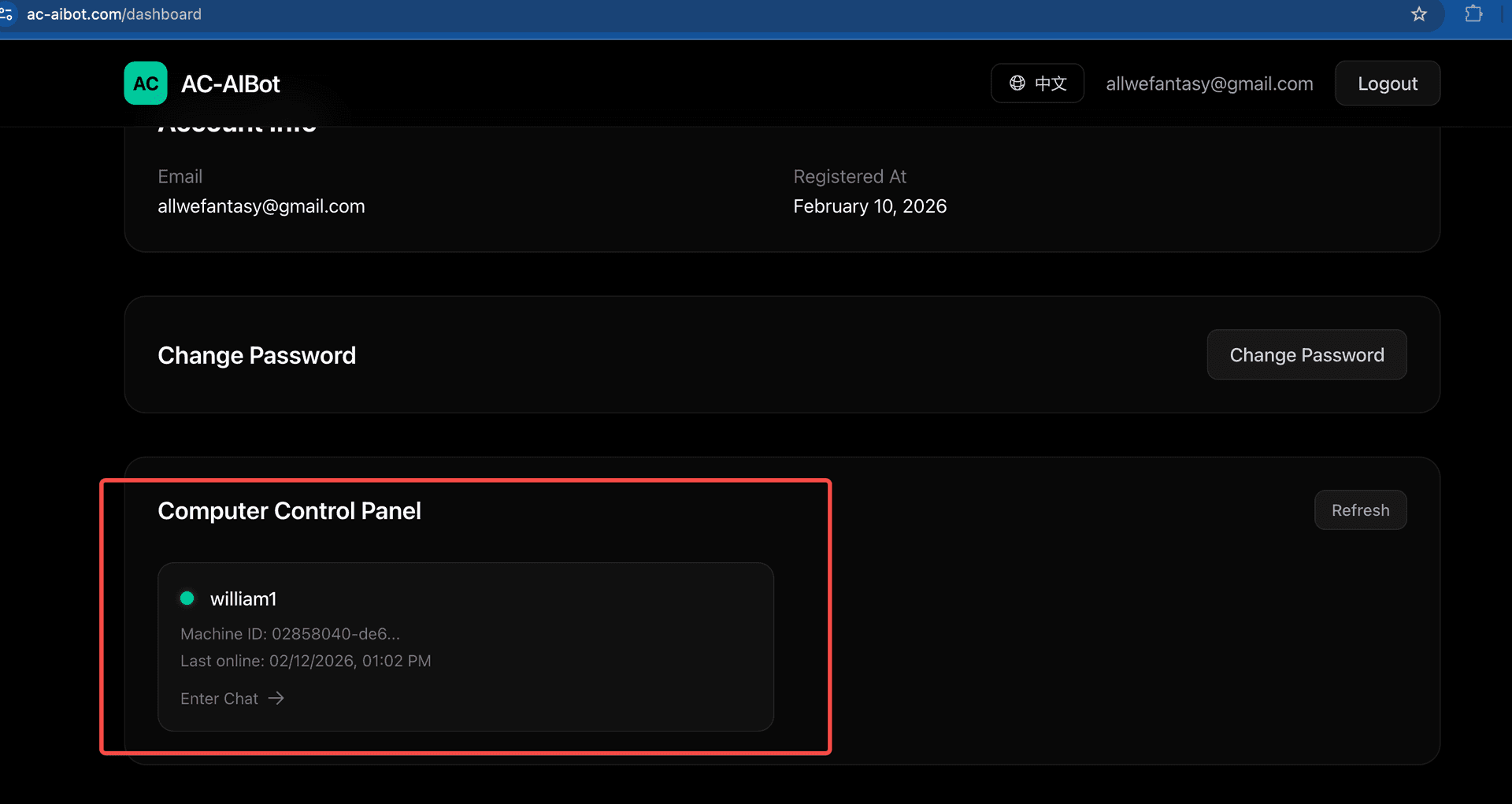
Each computer shows:
- Computer name (e.g.,
william1) - Online status (green dot means online)
- Machine ID
- Last online time
Click Enter Chat to enter the chat interface.
Step 5: Send Voice or Text Commands
In the chat interface, you can interact with the AI assistant in three ways:
- Chat: Text chat
- Scheduled Tasks: Scheduled tasks
- Voice Chat: Voice chat
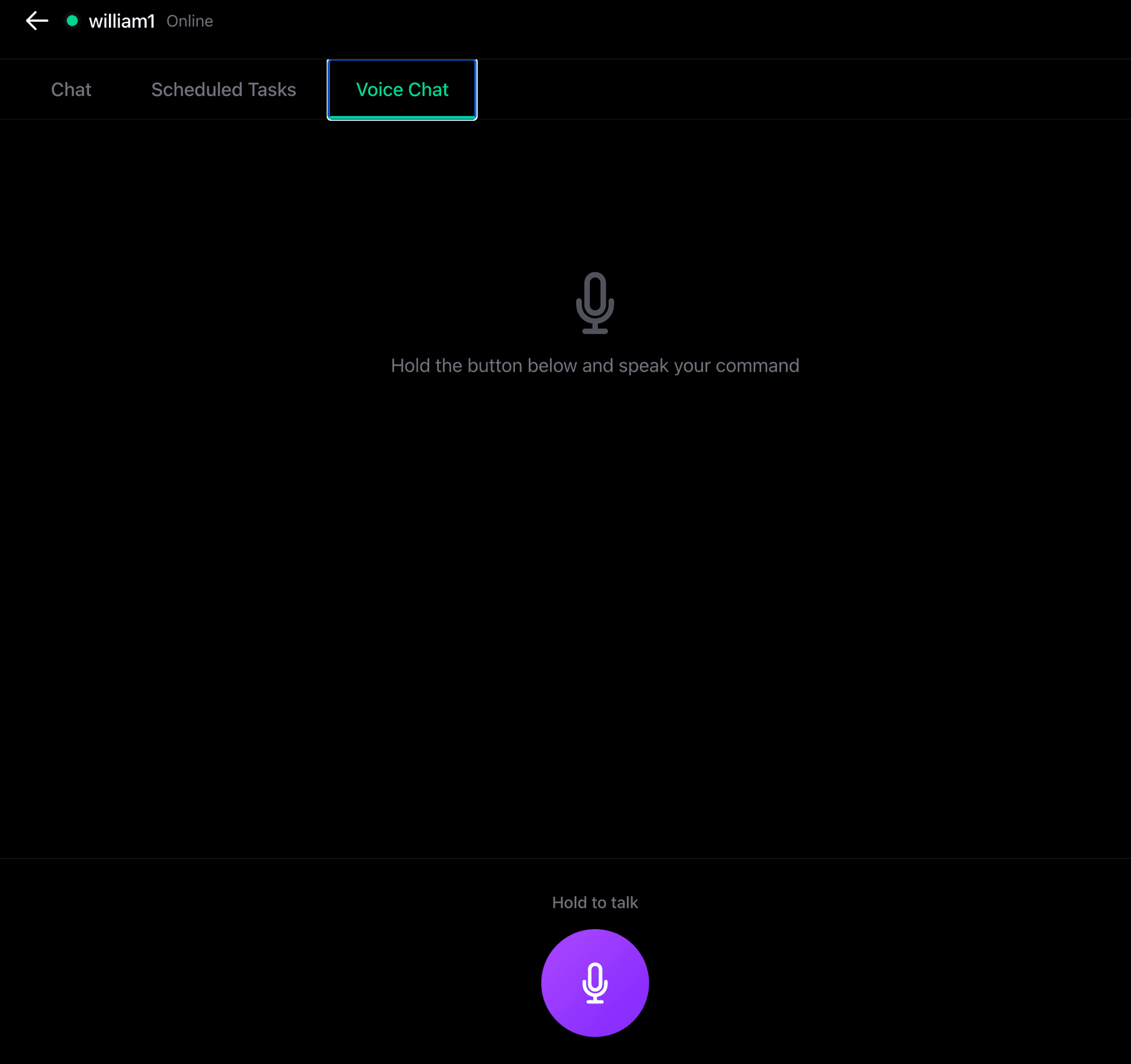
Using Voice Commands
- Switch to the Voice Chat tab
- Press and hold the microphone button at the bottom
- Speak your command (e.g., "Clean up my disk space")
- Release the button, and the AI assistant will execute the task on your computer
Use Cases
- Remote computer access while away: Use your phone to have your computer download files or organize documents
- Control from bed with your phone: Use voice commands to have AI search for information without getting up
- Multi-device collaboration: Research on your tablet while having AI process Excel on your computer
- Hands-free operation: Use voice to have AI execute tasks while doing housework
FAQ
What if my computer shows offline?
- Check if the AC-AIBot client is running
- Check if Remote Control is enabled and Start was clicked
- Check if the network connection is working
- Click Refresh in the client to update the status
Can't connect after configuring API Key?
- Confirm the API Key was copied completely (starts with
ak_) - Confirm the Server URL is correct (default
https://ac-aibot.com) - Check if a firewall is blocking the connection
Voice recognition not accurate?
Voice recognition depends on network and microphone quality. Suggestions:
- Use in a quiet environment
- Speak clearly at a moderate pace
- Ensure microphone permissions are enabled on your phone