Setup Models
Learn how to configure and manage AI models in AC-AIBot.
AC-AIBot supports various mainstream AI models, including DeepSeek, Doubao, GLM, and more. This guide explains how to configure models and set your primary model.
Access Model Management
- Click the Settings icon in the left navigation bar
- Select the Model Management tab at the top
You'll see the Model Management page listing all added models:
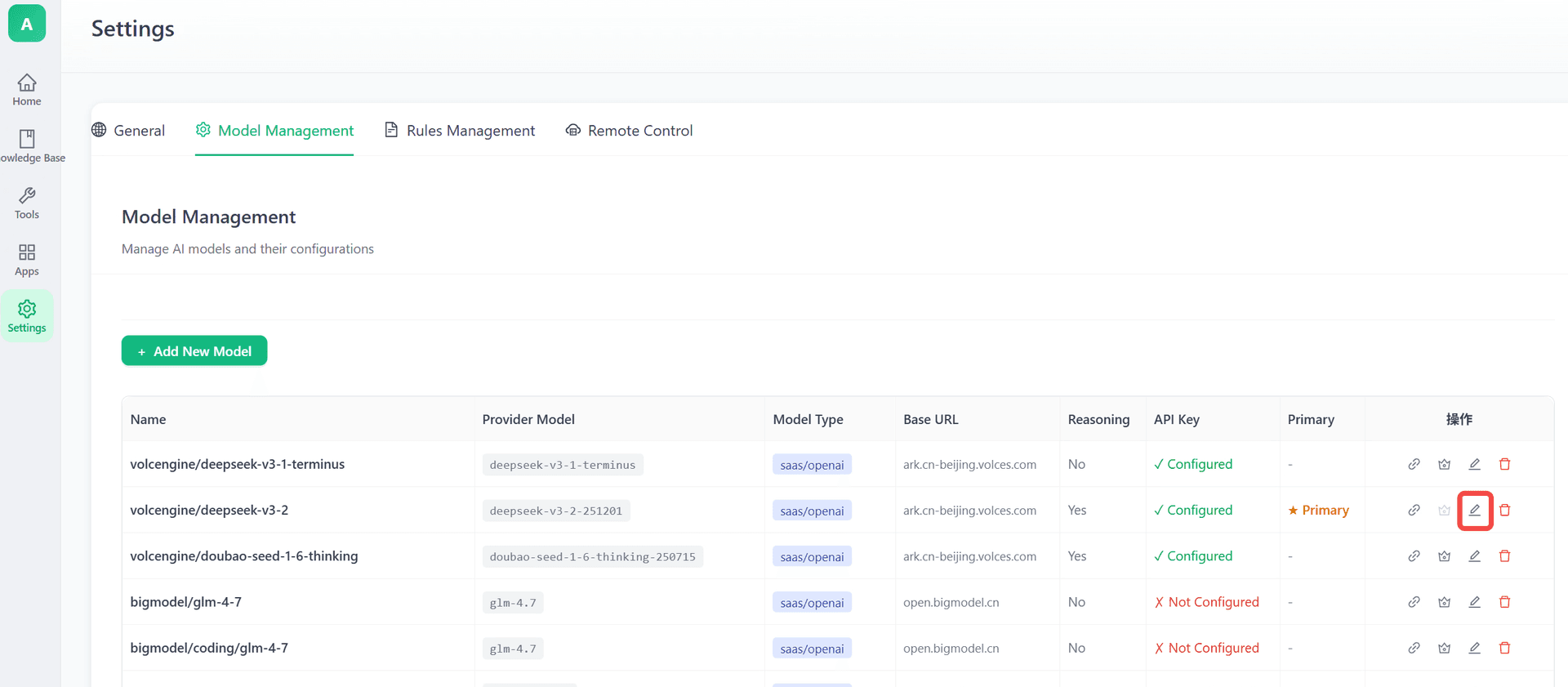
The page displays key information for each model:
| Column | Description |
|---|---|
| Name | Display name (alias) of the model |
| Provider Model | Original model name from the provider |
| Model Type | Type of model (e.g., SaaS/OpenAI Compatible) |
| Base URL | API service endpoint |
| Reasoning | Whether it's a reasoning model |
| API Key | Configuration status (Configured / Not Configured) |
| Primary | Whether it's the primary model |
Configure Model API Key
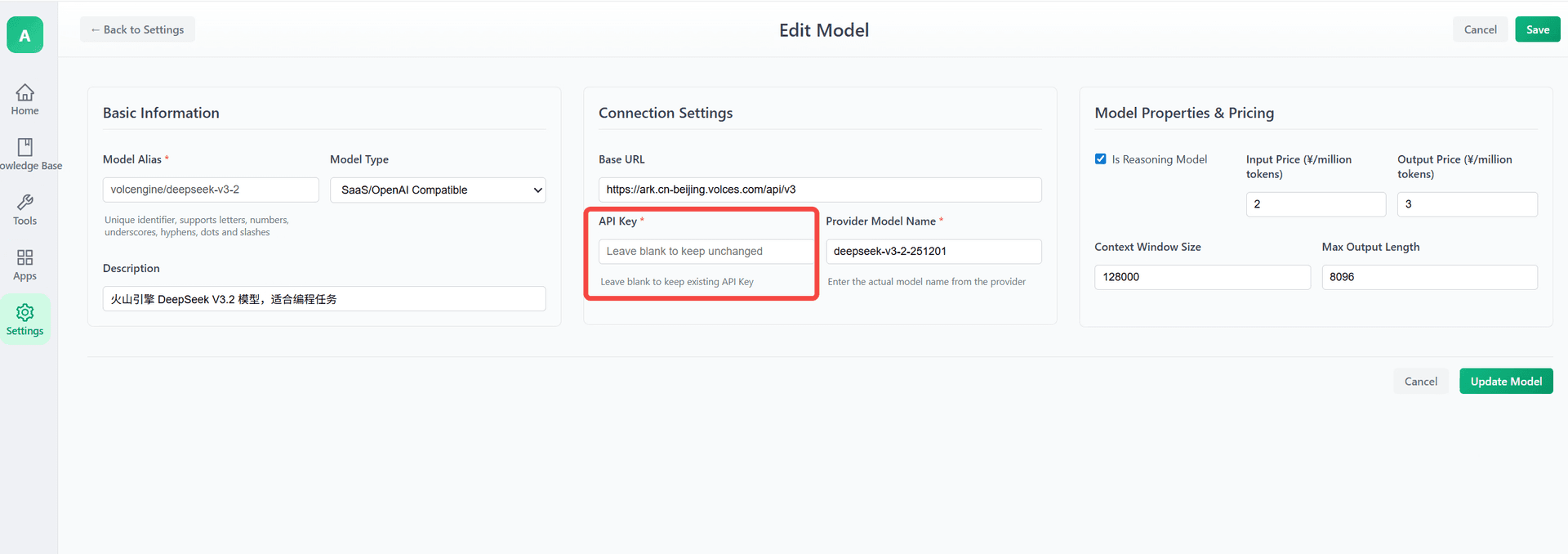
To use a model, you need to configure its API Key first. Click the edit button (pencil icon) on the right side of the model to enter the edit page:
Basic Information
- Model Alias: The display name used in the application
- Model Type: Usually select
SaaS/OpenAI Compatible - Description: Description of the model
Connection Settings
- Base URL: API service endpoint
- DeepSeek (Volcengine):
https://ark.cn-beijing.volces.com/api/v3 - GLM:
https://open.bigmodel.cn
- DeepSeek (Volcengine):
- API Key: The API key obtained from the model provider (required)
- Provider Model Name: The provider's model name, e.g.,
deepseek-v3-2-251201
Model Properties & Pricing
- Is Reasoning Model: Check this if the model supports reasoning capabilities
- Input Price / Output Price: Token pricing for cost tracking
- Context Window Size: Context window size, e.g.,
128000 - Max Output Length: Maximum output length, e.g.,
8096
After filling in the details, click Update Model to save the configuration.
Obtaining API Keys
Here's how to get API keys from different providers:
DeepSeek (Volcengine)
- Visit the Volcengine Console
- Navigate to the "Volcano Ark" product
- Create an inference endpoint under "Model Inference"
- Obtain your API Key
GLM (Zhipu AI)
- Visit Zhipu Open Platform
- Register and log in
- Create a key on the "API Keys" page
Other Compatible Models
AC-AIBot supports any model service compatible with the OpenAI API format. Simply fill in the correct Base URL and API Key.
Set Primary Model
After configuring your models, you need to set a primary model as the default for conversations.
- Click Settings and select the General tab
- Find the Model Configuration section
- Select your preferred model from the Primary Model dropdown
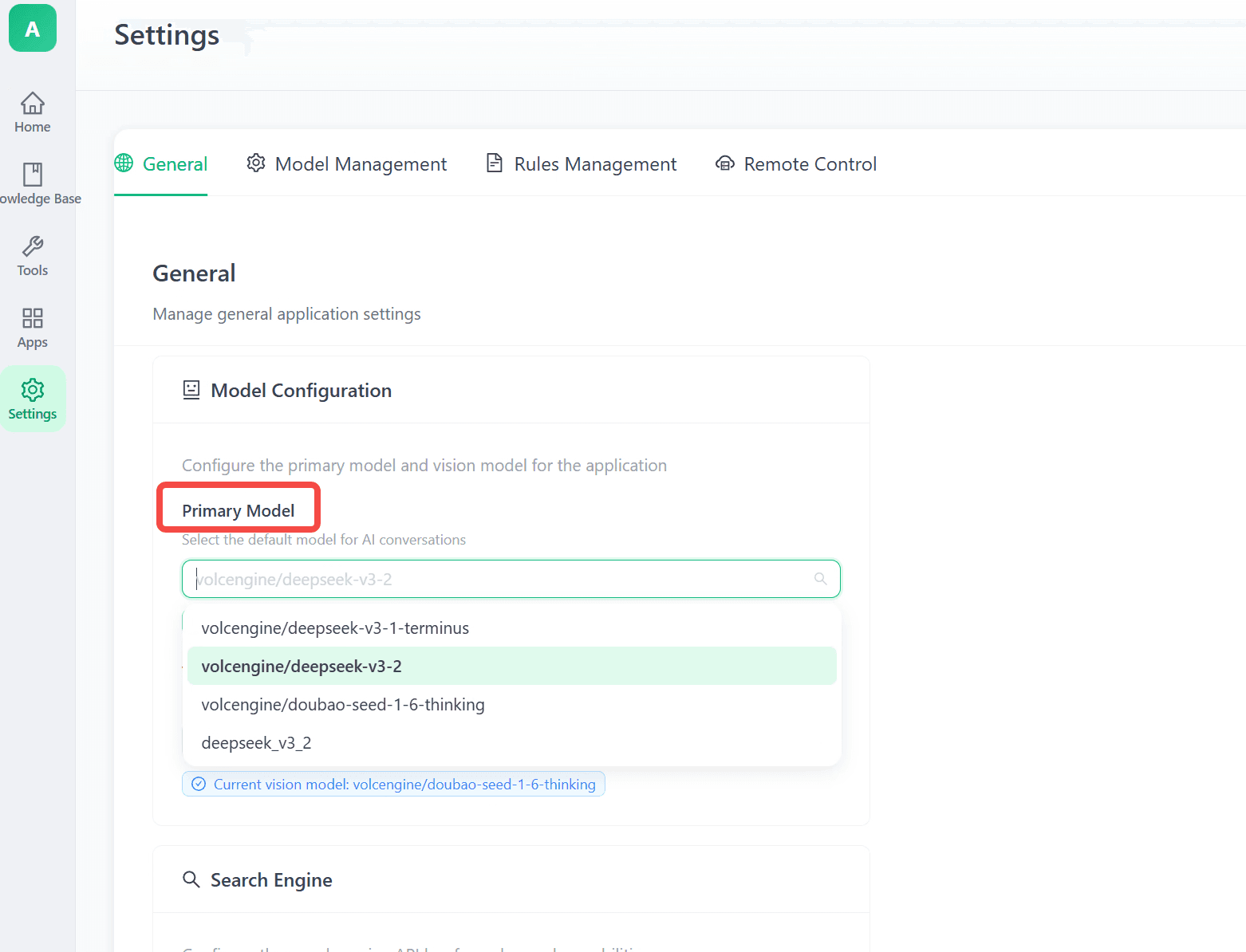
Note: Only models with "Configured" API Key status will appear in the dropdown list.
Once set, this model will be used as the default for all AI conversations.
FAQ
What if a model shows "Not Configured"?
This means the model's API Key hasn't been configured. Click the edit button, enter the correct API Key, and save.
How do I add a new model?
Click the + Add New Model button on the Model Management page and fill in the model information.
What is a Vision Model?
Some models support image understanding (Vision). You can configure a separate Vision Model on the General page for handling conversations that include images.